Packaging artwork can look correct on a designer’s computer and open with substituted fonts at a printer. A missing typeface can change line breaks, spacing, panel hierarchy, required copy, or the appearance of a brand mark. Illustrator’s Create Outlines command prevents that dependency by converting live type into vector shapes.
That does not mean every working file should be outlined. Outlined text is no longer editable as text, so the professional workflow is to keep a live, editable master and create a separate outlined production copy only after copy approval. In many print workflows, a properly prepared PDF with embedded fonts is also preferable. The supplier’s current artwork specification should decide the final delivery method.
The quick answer
To outline fonts in Adobe Illustrator:
Save an editable master before changing the type.
Resolve every missing-font warning.
Approve the copy, typography, SKU, and regulatory content.
Choose Select > Object > Text Objects.
Choose Type > Create Outlines.
Use Shift + Ctrl + O on Windows or Shift + Command + O on macOS if you prefer the shortcut.
Verify the result with Type > Find/Replace Font, visual inspection, and a final proof.
Save the outlined artwork as a separate release file.
Adobe describes Type > Create Outlines as converting type to a vector shape, and its current shortcut reference confirms the Windows and macOS commands above. Adobe: Essential components of an artwork Adobe: Default keyboard shortcuts
What outlining fonts actually changes
Live text contains characters plus font-dependent typographic instructions. Outlining converts the visible letterforms into vector paths. The artwork no longer needs the original font to draw those letter shapes, but the words also stop behaving like editable text.
Delivery state | Font dependency | Text editability | Search and accessibility potential | Best use |
|---|---|---|---|---|
Live Illustrator text | Requires the correct font to preserve appearance | Fully editable | Retains actual text data | Working master, SKU adaptation, regulatory revisions, translations |
Outlined Illustrator text | Letter shapes no longer require the font | Not editable with text controls | Lettering is geometry rather than live text | Static native-file release when the printer requests outlined type |
Print PDF with properly embedded or subset fonts | Font data travels in the PDF subject to permissions and export settings | Limited compared with the source file | Can retain searchable, extractable text when prepared correctly | Many final print-output workflows |
Illustrator package with font files | Depends on packaged fonts and recipient rights | Editable when fonts are available | Retains live text | Collaboration only when the license and supplier workflow permit font transfer |
Adobe’s Illustrator font guidance calls PDF a reliable way to preserve typography for print output. It also notes that access to packaged fonts depends on availability and licensing. Adobe: Fonts in Illustrator FAQ
The practical decision is therefore not “Should all fonts always be outlined?” It is “Which released file preserves the approved appearance without destroying the editable source the brand will need later?”
Step 1: preserve the editable master
Create a production copy before outlining. A clear version pair might be:
brand_sku_carton_v12_EDITABLE.ai
brand_sku_carton_v12_OUTLINED.ai
The editable file is the source for future copy changes, claims updates, translations, seasonal versions, and SKU extensions. The outlined file is a controlled release artifact. Never rely on Undo as the long-term recovery plan after saving and closing a document.
Before creating the outlined copy, confirm:
the correct SKU and market version;
approved ingredients, warnings, net contents, claims, and legal copy;
spelling, punctuation, capitalization, and line breaks;
font family, style, size, tracking, leading, and alignment;
variable-data placeholders, lot coding areas, and date-code areas;
dieline version, panel orientation, bleed, and safe areas.
Outlining freezes the current letter shapes. It does not prove that the words, formatting, or packaging requirements are correct.
Step 2: resolve missing fonts before creating outlines
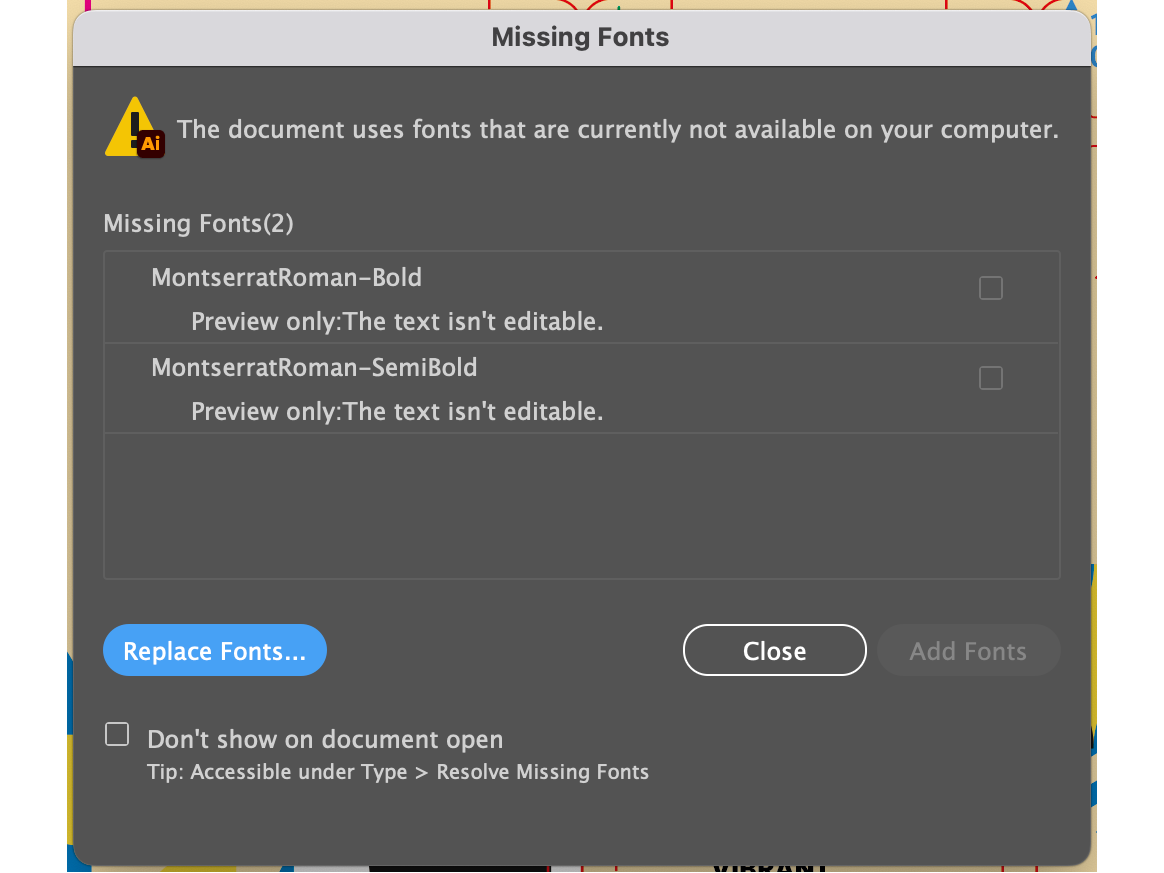
Do not outline text while Illustrator is displaying a substituted font. Adobe states that Illustrator can replace unavailable fonts with a default font and highlight the affected text. If that substituted version is outlined, the wrong appearance becomes permanent in the production copy.
Use one of the approved routes:
Install the correctly licensed font.
Add the font through Adobe Fonts if it is available to the account.
Obtain the source font through the brand’s licensed font-management process.
Replace it with an approved alternative and reapprove the artwork.
Replacing a missing font is a design change, not a technical cleanup. It can alter glyphs, line endings, text density, and panel balance, so it should go through the appropriate brand and regulatory review.
Step 3: select text objects without disturbing the dieline
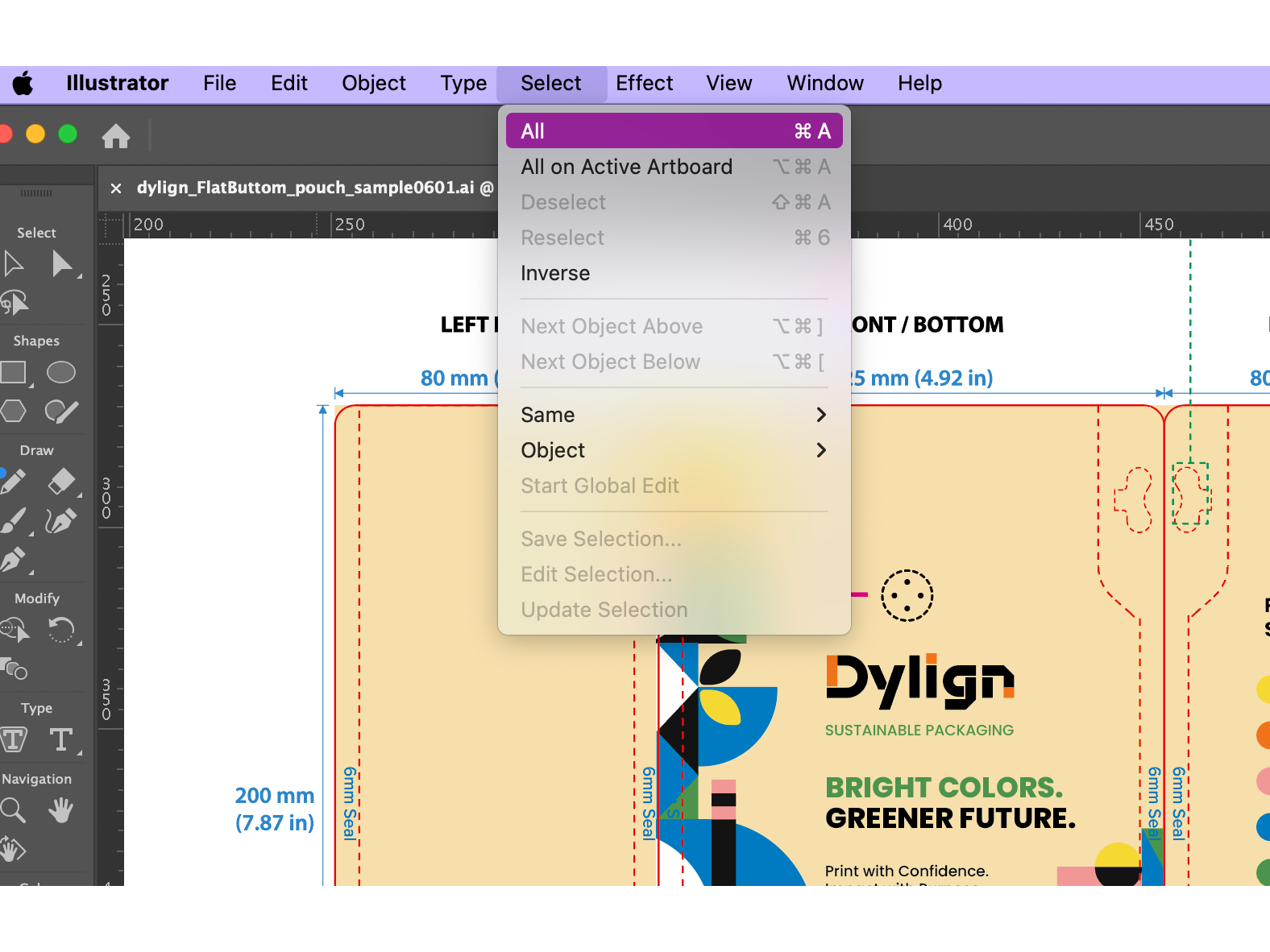
For a simple illustration, Select > All may appear convenient. In packaging artwork, however, that command can also select images, dielines, production marks, swatches represented as objects, and other content.
Select > All is broader than the font-outlining task and should be used cautiously in production artwork.*
A more controlled route is:
Select > Object > Text Objects
Adobe’s current selection guidance lists Text Objects under Select > Object. Adobe: Select objects by characteristics
Before applying the command, review the Layers panel for locked, hidden, template, and nonprinting layers. Selection behavior can exclude content that is not available for editing. Also remember that text inside a placed PDF, EPS, or other linked graphic is not the same as a live text object in the current Illustrator document; edit or preflight the source file separately.
Step 4: use Type > Create Outlines
With the approved text objects selected, choose:
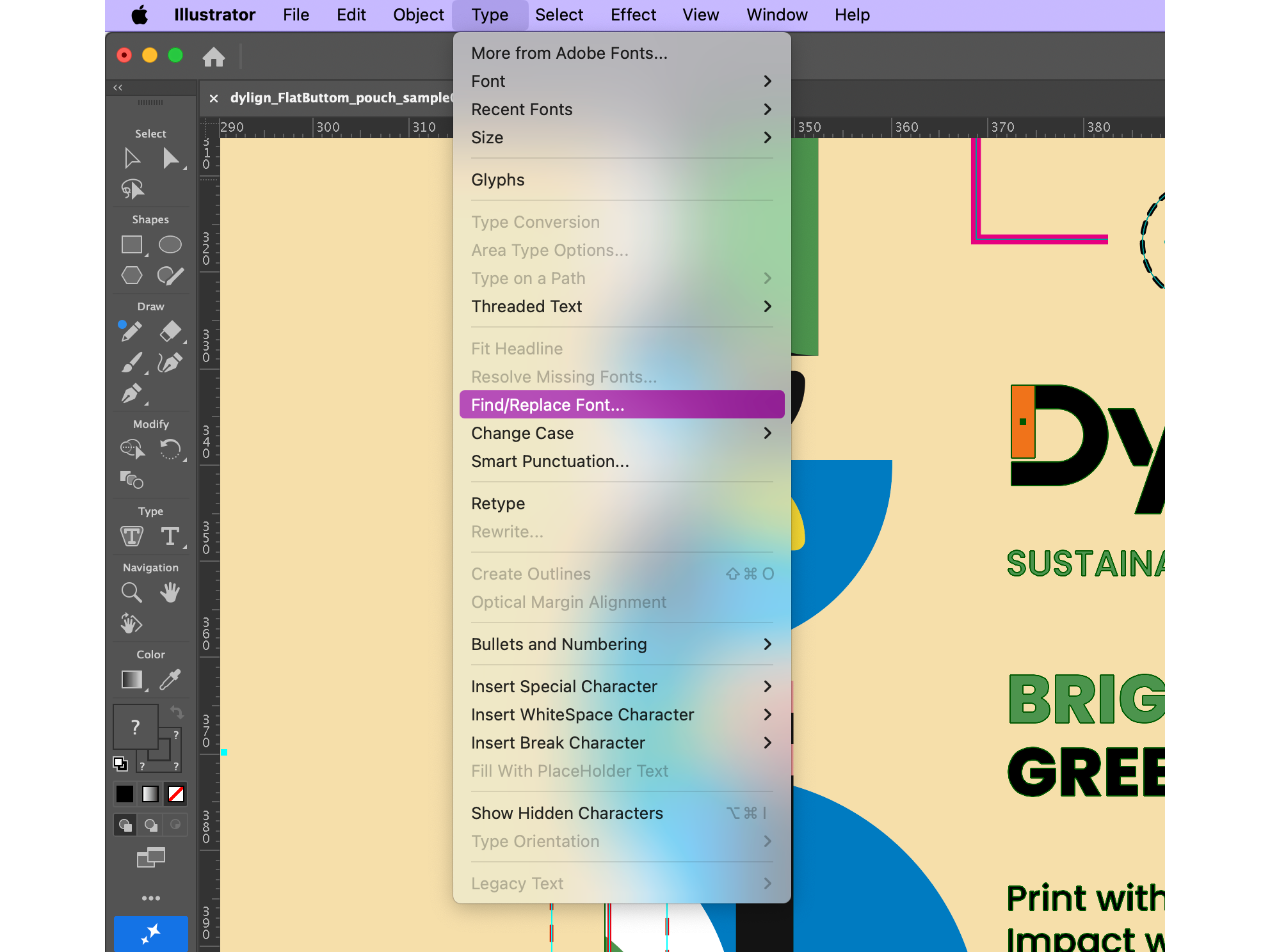
Type > Create Outlines
Create Outlines converts the selected live type into vector shapes.*
The shortcuts are:
Platform | Create Outlines shortcut |
|---|---|
Windows | Shift + Ctrl + O |
macOS | Shift + Command + O |
Do not confuse Create Outlines with Object > Path > Outline Stroke. Create Outlines converts type into vector shapes; Outline Stroke converts a stroke into a filled shape. Adobe lists these as separate operations. Adobe: Essential components of an artwork
Step 5: verify the result instead of assuming it worked
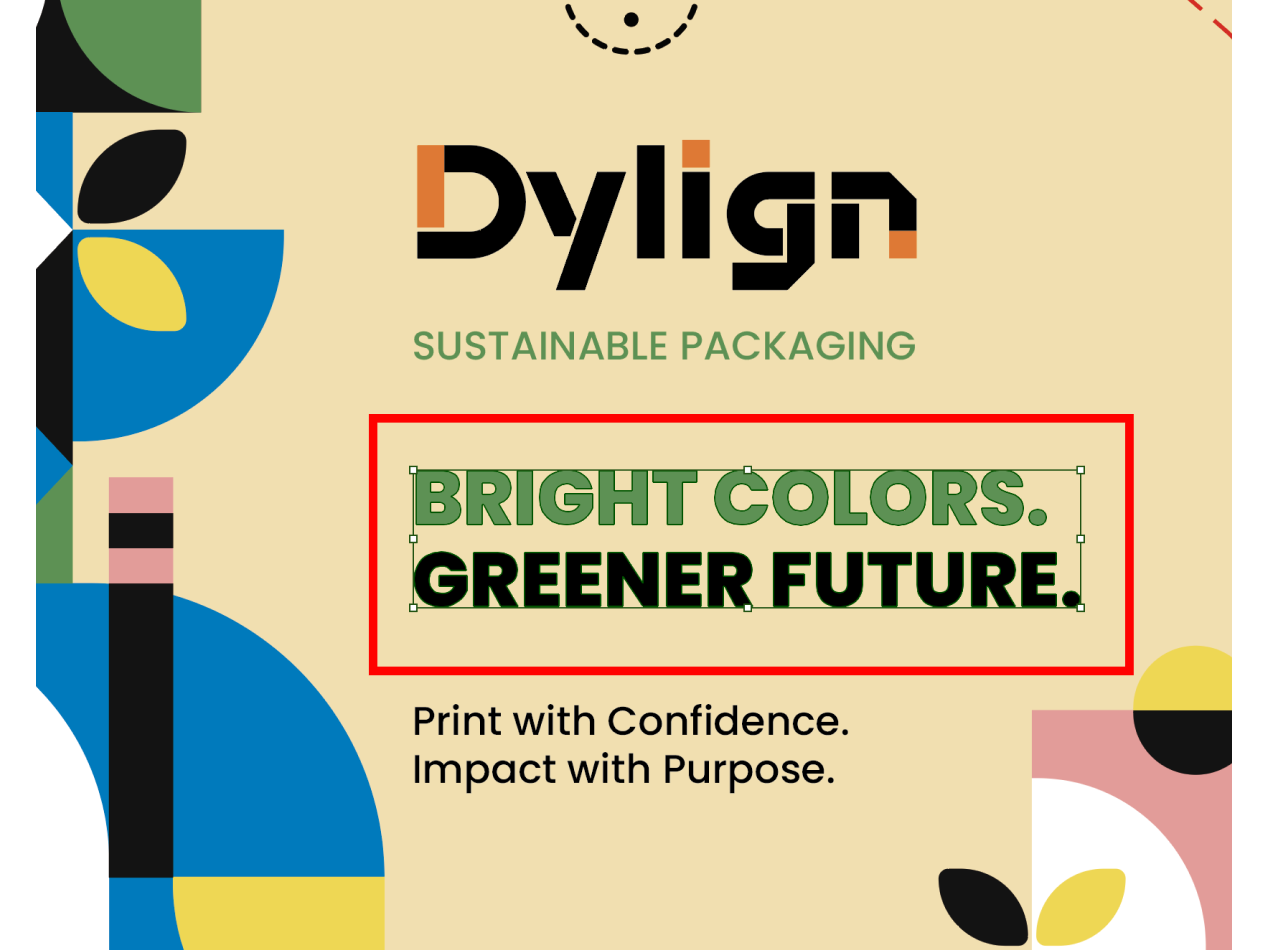
Use the Selection or Direct Selection tool to inspect a converted word. Live text displays a text object or insertion behavior; outlined lettering displays vector paths and anchor points.
Before outlining, the copy remains a live text object.
After Create Outlines, the visible letterforms are vector geometry rather than editable text.*
Next, choose Type > Find/Replace Font. Adobe documents this dialog as the place to review fonts used in the Illustrator document and locate their instances
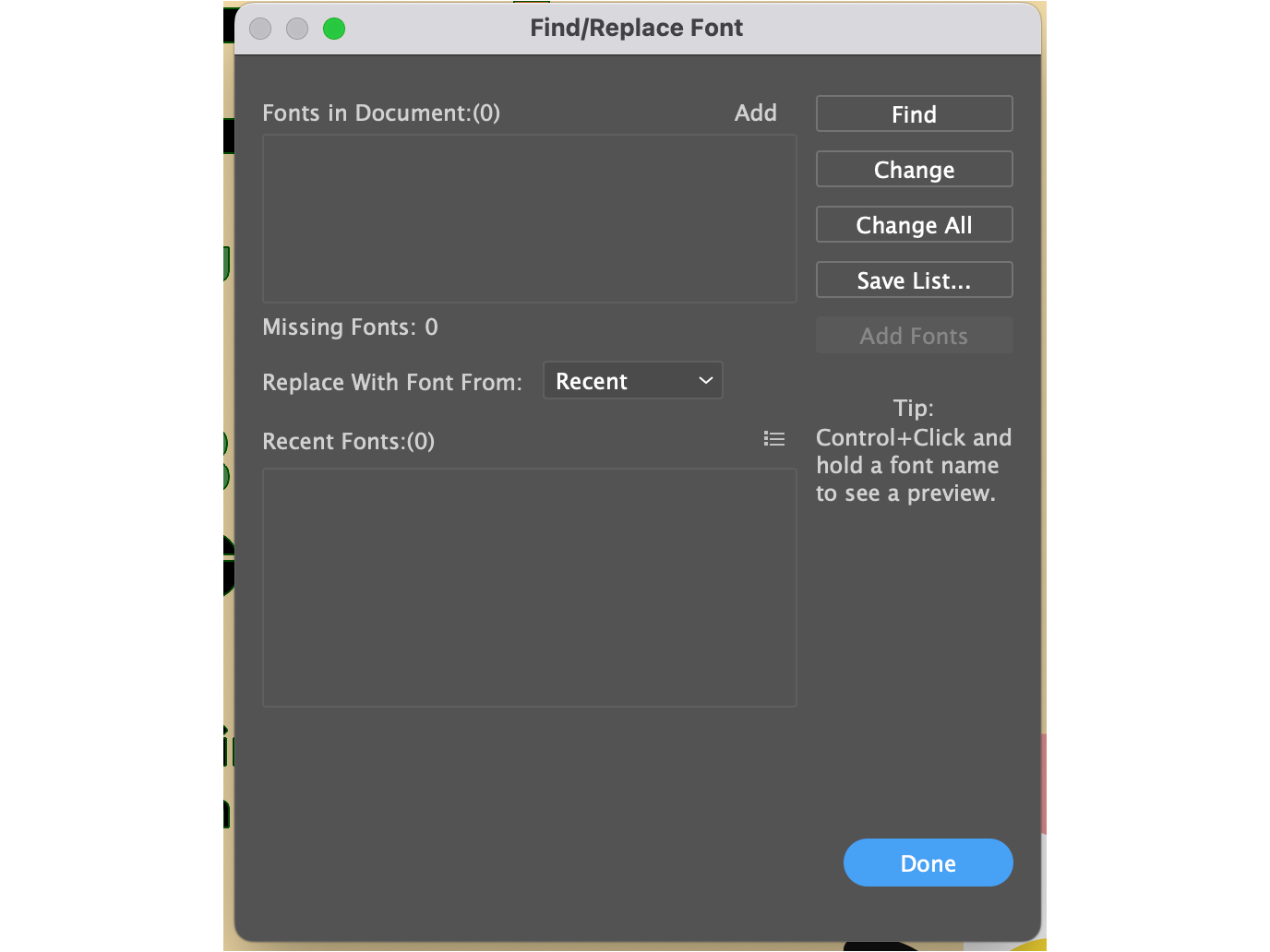
An empty Fonts in Document list is a useful verification signal, but it does not replace a complete prepress review.*
Check the file again after saving, closing, and reopening it. Then compare a proof of the outlined version with the approved live-text master. This catches changes caused by the wrong source version, missing fonts, selection gaps, or unintended artwork edits.
When you should not outline the working file
Keep live text in the master whenever the file may still require:
regulatory or legal-copy corrections;
ingredient, nutrition, allergen, usage, or warning updates;
translations and market-specific versions;
retailer, channel, or promotional variants;
variable-data production;
copy fitting or typography refinement;
accessible or searchable digital output.
Adobe’s accessibility guidance says accessible PDFs need searchable text and sufficient character information for extraction to Unicode. An outlined print-production file should therefore not automatically become the brand’s web PDF or accessible digital document. Retain live text in a separately prepared digital source and validate that output in Acrobat. Adobe: Accessibility features in PDFs
Outlining is not the only way to prevent font problems
Use the delivery method requested by the actual printer or converter.
Situation | Recommended handoff | Main control |
|---|---|---|
Printer requests native artwork with outlined type | Outlined .ai plus proof | Retain a separate editable master |
Printer accepts a print-ready PDF | Approved PDF preset with embedded or subset fonts | Verify fonts, output intent, bleed, and separations in preflight |
Printer must edit copy | Live text plus licensed font access, or an approved alternate workflow | Confirm both edit authority and font license |
Agency collaboration is continuing | Live Illustrator file and controlled asset package | Keep versioning, links, and licensing intact |
Brand also needs a searchable or accessible PDF | Separate live-text digital output | Test tags, reading order, extraction, and accessibility separately |
Illustrator’s Package feature can collect eligible fonts and linked graphics, but Adobe tells users to check the font license before copying fonts. Adobe: Package files in Illustrator
For Adobe Fonts specifically, Adobe permits commercial packaging design and properly embedded PDF output, but does not permit transferring Adobe Fonts files to another user or computer through a packaging workflow. A printer that needs the live font must have its own qualifying license. Fonts obtained elsewhere are governed by their own end-user license agreements. Adobe Fonts: Font licensing FAQ
What font outlining does—and does not—solve
Production issue | Does outlining solve it? | Required control |
|---|---|---|
Missing font on the recipient’s computer | Yes, for correctly outlined text | Outline only after the right font is active and approved |
Font substitution in the outlined native file | Yes, for the converted letterforms | Reopen and inspect the released file |
Incorrect spelling or regulatory copy | No | Complete copy and compliance approval first |
Wrong font already substituted before outlining | No | Resolve the missing font before conversion |
Low-resolution images or missing image links | No | Run a separate Links and image-resolution review |
Incorrect dieline, bleed, or safe area | No | Check the manufacturer’s current dieline and artwork specification |
Overprint, spot-color, or separation errors | No | Inspect output and separations in prepress |
Font-file transfer rights | No | Review the font license and recipient access |
Searchable or accessible digital text | Usually not | Produce and test a separate live-text digital PDF |
Packaging artwork release checklist
Check | Owner | Pass evidence |
|---|---|---|
Editable master preserved | Designer / brand owner | Live-text .ai stored under controlled versioning |
Copy approved | Brand / legal / regulatory | Approved copy record matches the artwork revision |
Missing fonts resolved | Designer / prepress | No unresolved warning or substituted-font highlight |
Correct text selected | Designer | Intended text objects selected without changing the dieline or artwork |
Outlines created | Designer | Selected letterforms display as vector paths |
Live-font audit completed | Designer / prepress | Find/Replace Font shows the expected result |
Images and links checked | Designer / prepress | No missing or unintentionally modified links |
Dieline and bleed checked | Structural / prepress | Supplier specification and artwork boundaries match |
Output inspected | Prepress / printer | Separations, spot colors, overprint, and PDF settings approved |
Final proof approved | Brand / quality | Proof is tied to the released filename and revision |
FAQ
Can outlined text be converted back into fully editable text?
Not reliably. Illustrator may help identify a similar font in some workflows, but the original characters, styles, tracking, paragraph settings, and editing structure are not preserved as live type. Keep the editable master.
Does outlining fonts improve print quality?
Outlining removes the recipient’s dependency on the font file for those letter shapes. It does not automatically improve color, trapping, resolution, registration, or press quality.
Should every font in a packaging file be outlined?
Only in the release copy when the printer’s workflow calls for it. Keep live text in the editable master and in any separate digital file that needs search, extraction, localization, or accessibility.
Why does Find/Replace Font still show a font after outlining?
Some live text remains. Check visible, hidden, locked, template, and nonprinting layers, plus objects outside the artboards. Also inspect placed source files separately.
Can I send the font file instead of outlining?
Only when the font license permits transfer and the recipient is authorized to use it. Adobe Fonts files cannot be transferred through a packaging workflow; other font vendors may have different terms.